




Lock the apps you choose. Nothing leaves the phone.

FamilyLock lives on the phone you hand your child. Set a bedtime curfew, give games a daily time limit, and keep everything behind your PIN. No account, no ads, no subscription.

Most parental control apps watch. This one just locks.

Apps that read messages or scan photos do it because that is their business. FamilyLock was built the other way around: block what needs blocking, keep everything on the phone, and ask for nothing but a PIN.

  • Nothing leaves the phone

    FamilyLock has no internet permission at all, so it can't send anything anywhere. It doesn't read messages, photos, browsing or typing. The only thing it checks is which app is open.

  • No account, just a PIN

    No family group, no child account, no email to verify, no second app. Install it on the phone you are handing over and set it up in one sitting.

  • Pay once, keep it

    One $5 purchase on Google Play. No monthly charge, and no surprise gap in protection because a card expired.

A day with FamilyLock

You set the rules once, on your child's phone. After that it runs by itself. Here is an ordinary school day with bedtime at 9.

  1. 17:00 AM

    Allowed hours begin

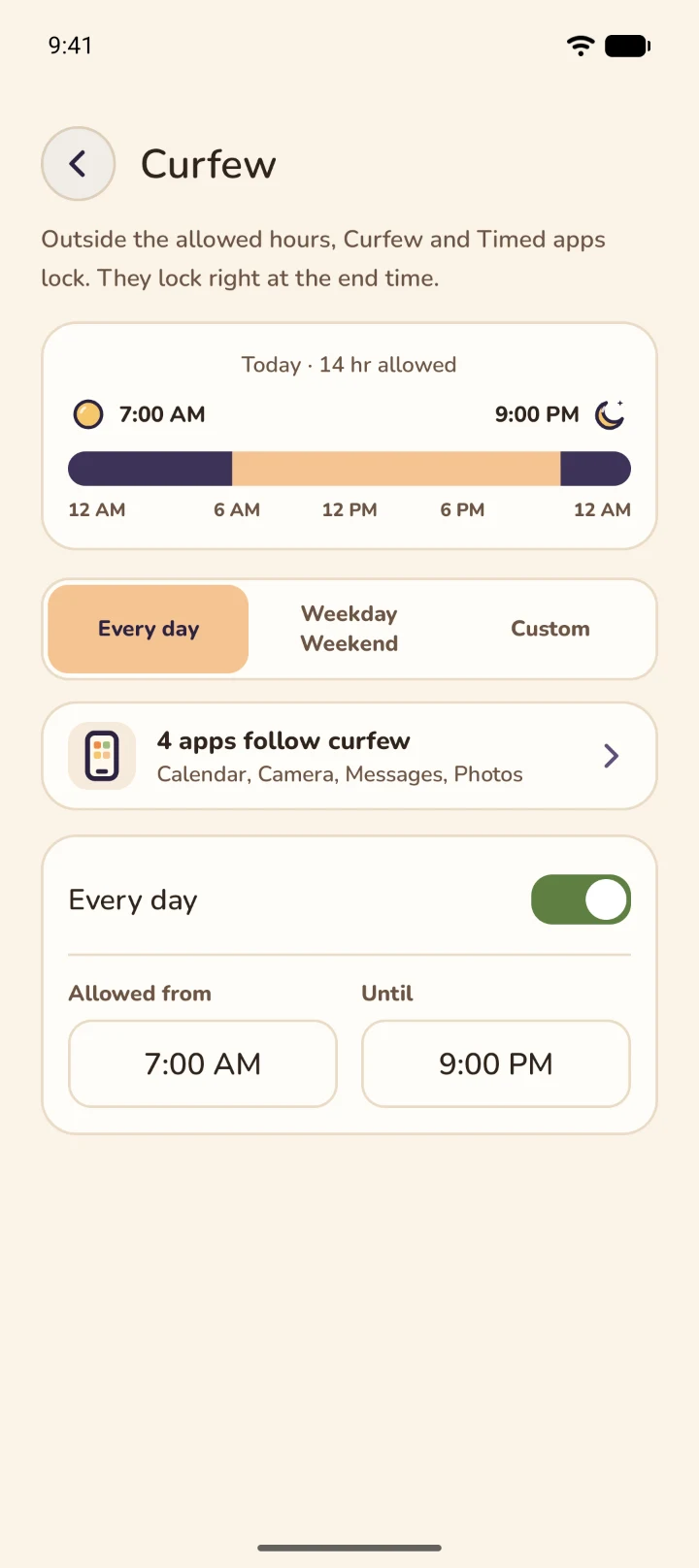
    The peach part of the day. Apps you set to Curfew open at 7 and lock again at 9, on their own.

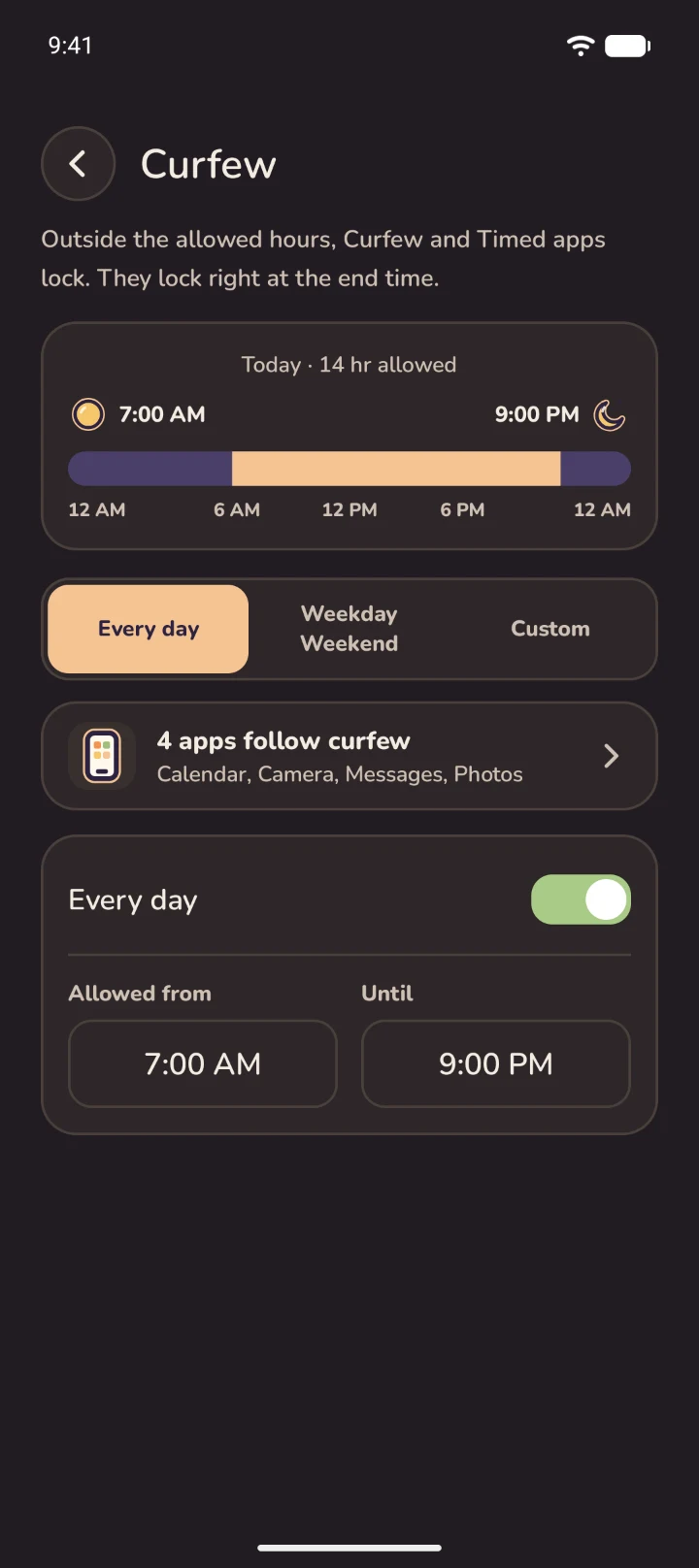
    The Curfew screen: today 14 hours allowed, Every day selected, allowed from 7:00 AM until 9:00 PM, with Calendar, Camera, Messages and Photos following curfew. The Curfew screen in dark mode.
  2. 23:30 PM

    Thirty minutes of games

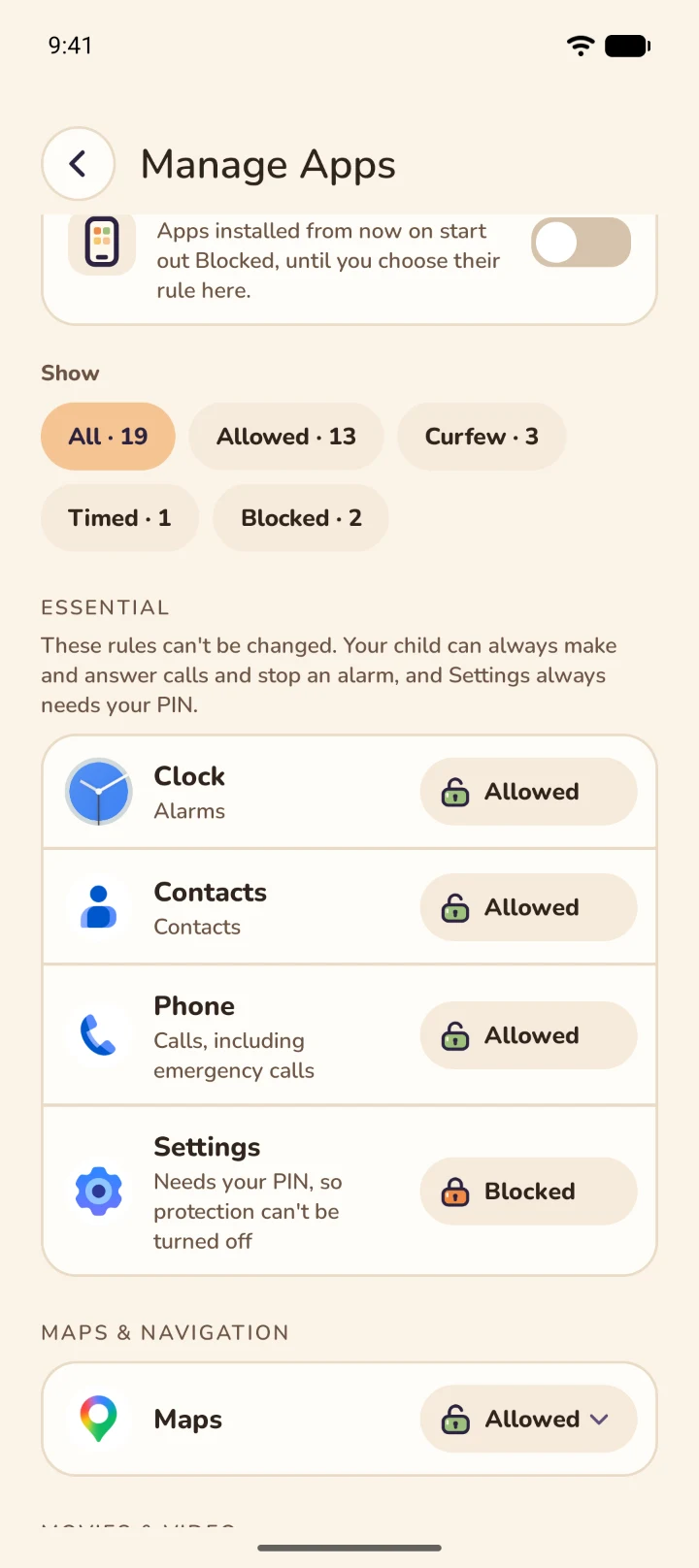
    A Timed app gets its own daily minutes, counted only while it is on screen. When they run out, it locks until tomorrow.

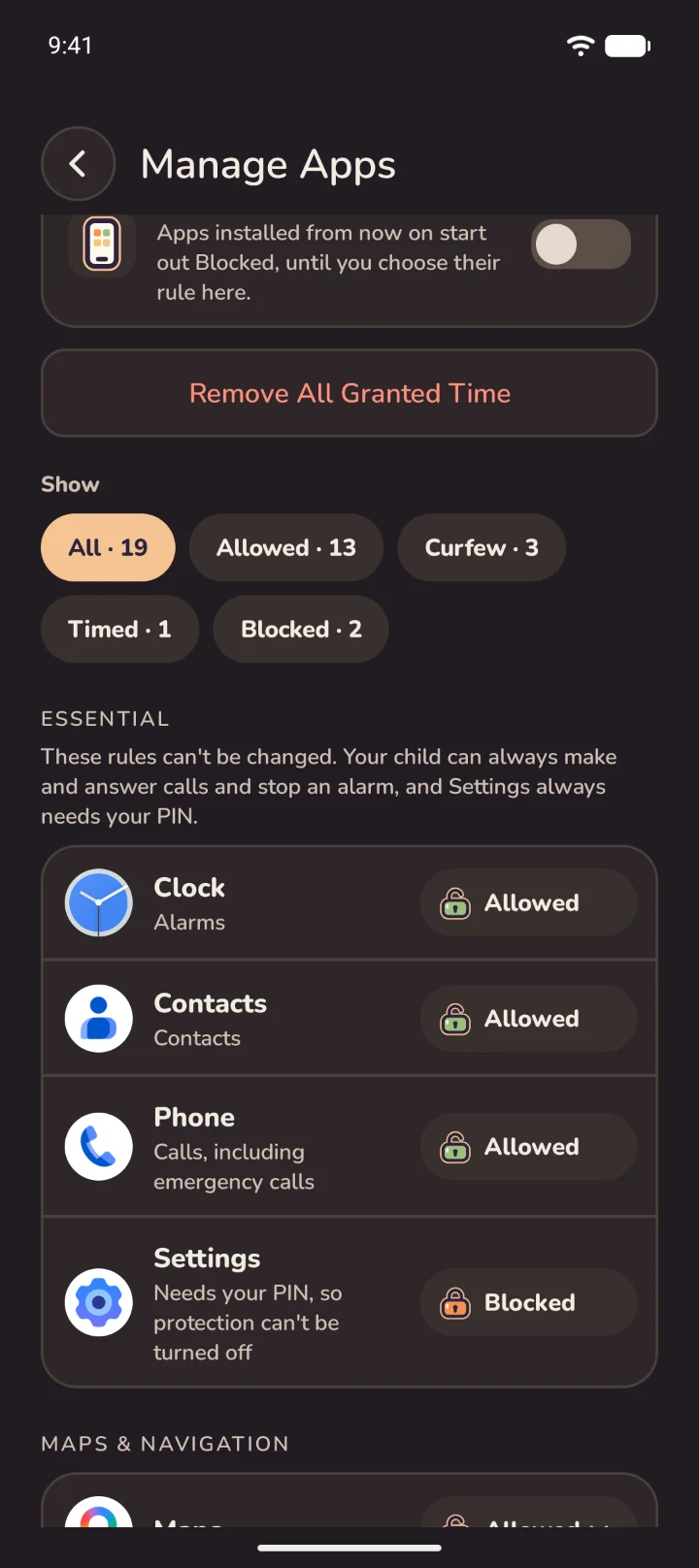
    Manage Apps: 19 apps, 13 Allowed, 3 Curfew, 1 Timed and 2 Blocked. Clock, Contacts and Phone are always allowed and Settings is always blocked. Manage Apps in dark mode, with the Essential apps and the rule counts.
  3. 36:00 PM

    "Can I have a bit longer?"

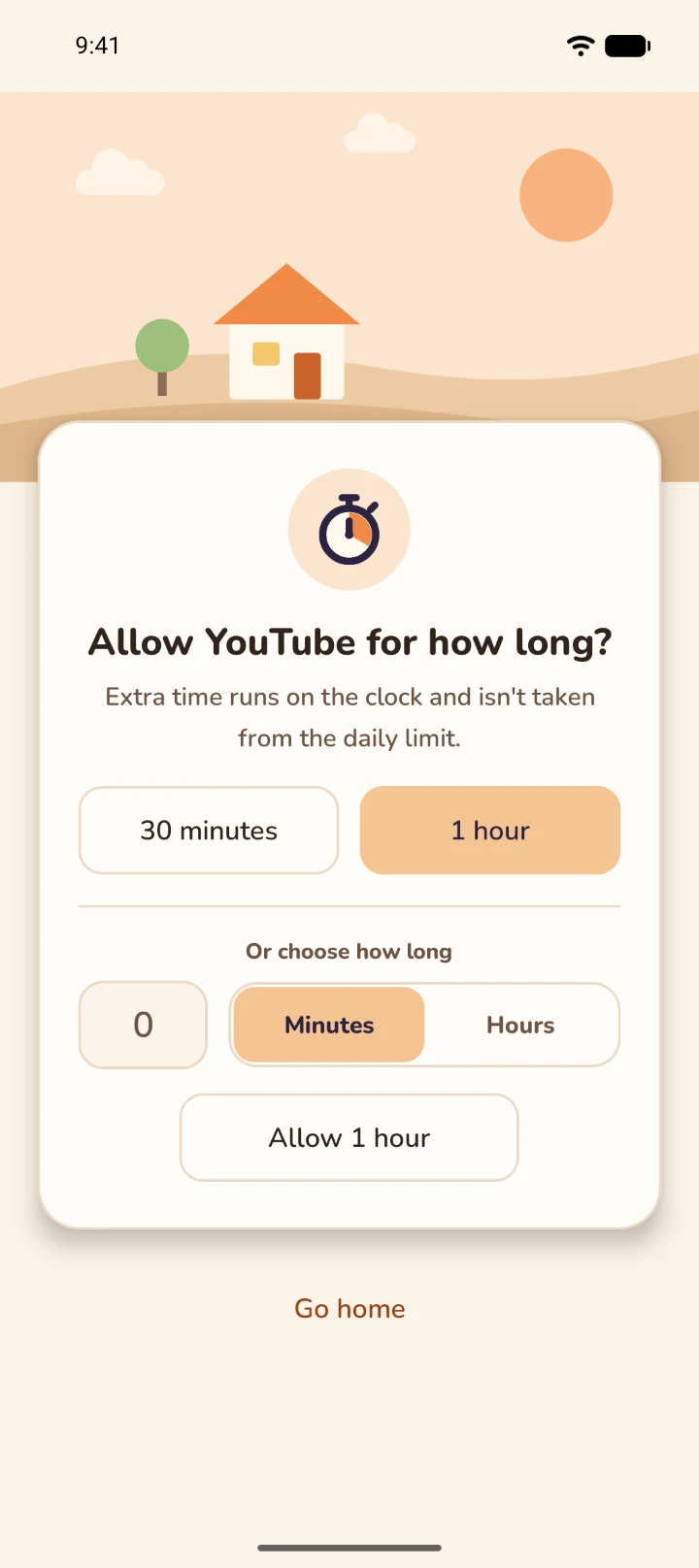
    Type your PIN on the lock screen and allow that one app for 30 minutes, an hour, or however long you like. The rule stays as it was.

    The lock screen after the PIN: 1 hour is chosen, ready to Allow.
  4. 49:00 PM

    Bedtime means bedtime

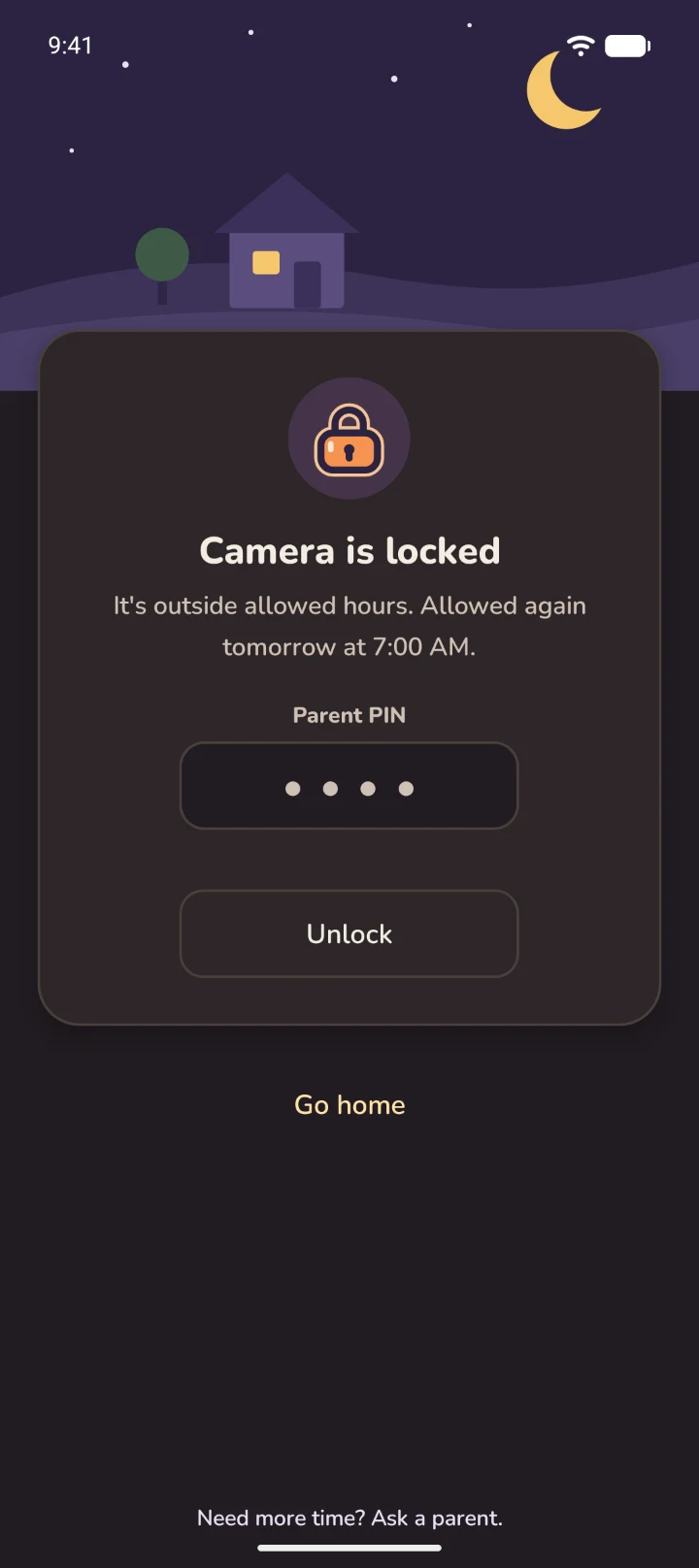
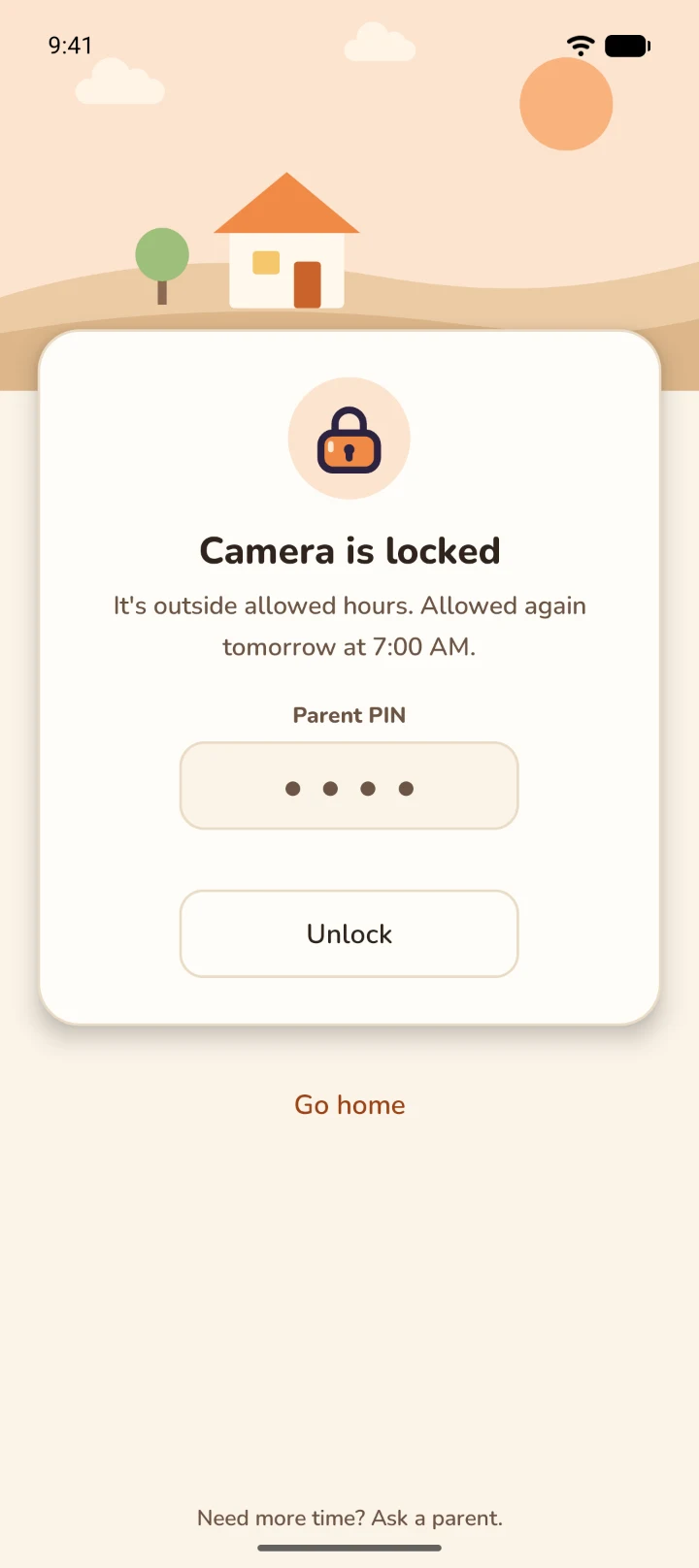
    Curfew apps lock. The lock screen says why and when they open again, so there is less to argue about.

    FamilyLock's lock screen at night: Camera is locked until 7:00 AM tomorrow.

Everything a parent needs, nothing extra

Every feature is on your child's phone, behind your PIN.

Setting the rules

  • A rule for every app

    Allowed, Curfew, Timed or Blocked, app by app, or every app at once. Turn on Block new apps and anything installed later starts out Blocked.

  • Curfew

    Allowed hours for every day, weekdays and weekends, or each day its own. Overnight hours work.

  • Daily time limits

    Minutes per app, counted while it is on screen, reset at midnight. Curfew still applies on top.

  • Unlock for Today

    Road trip or sick day: curfews and time limits lift until midnight. Blocked apps stay blocked.

  • Lock for Today

    The opposite. Until midnight every app locks, except calls, contacts and alarms.

Peace of mind

  • Calls always work

    Phone, Contacts, Clock and the home screen can never be locked, even by accident. Settings, App info and Digital Wellbeing always need your PIN.

  • History

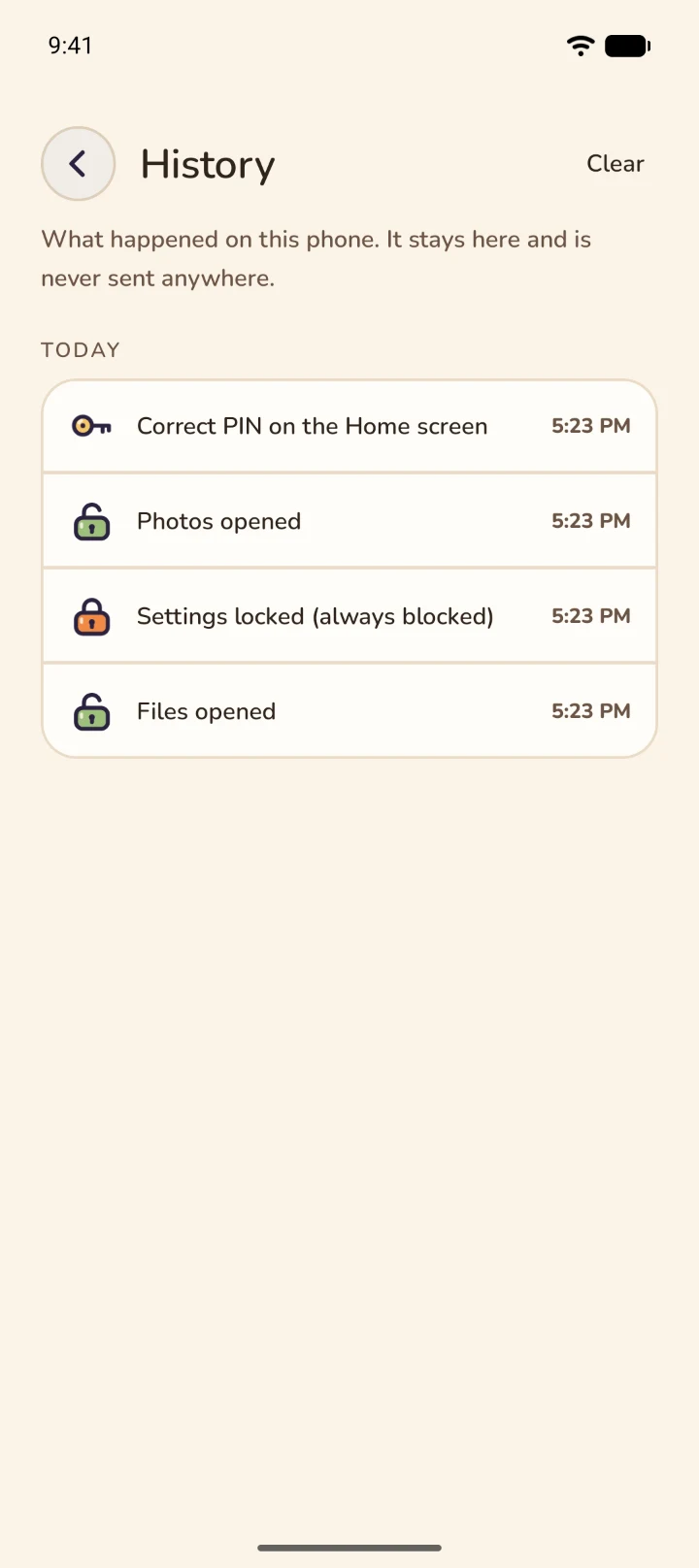
    When restricted apps were opened or locked, when the PIN was used, and what changed. Kept on the phone, latest 400 entries.

  • A heads-up for your child

    Optional. A notification five minutes before curfew or a time limit locks the app they are using.

  • Uninstall protection

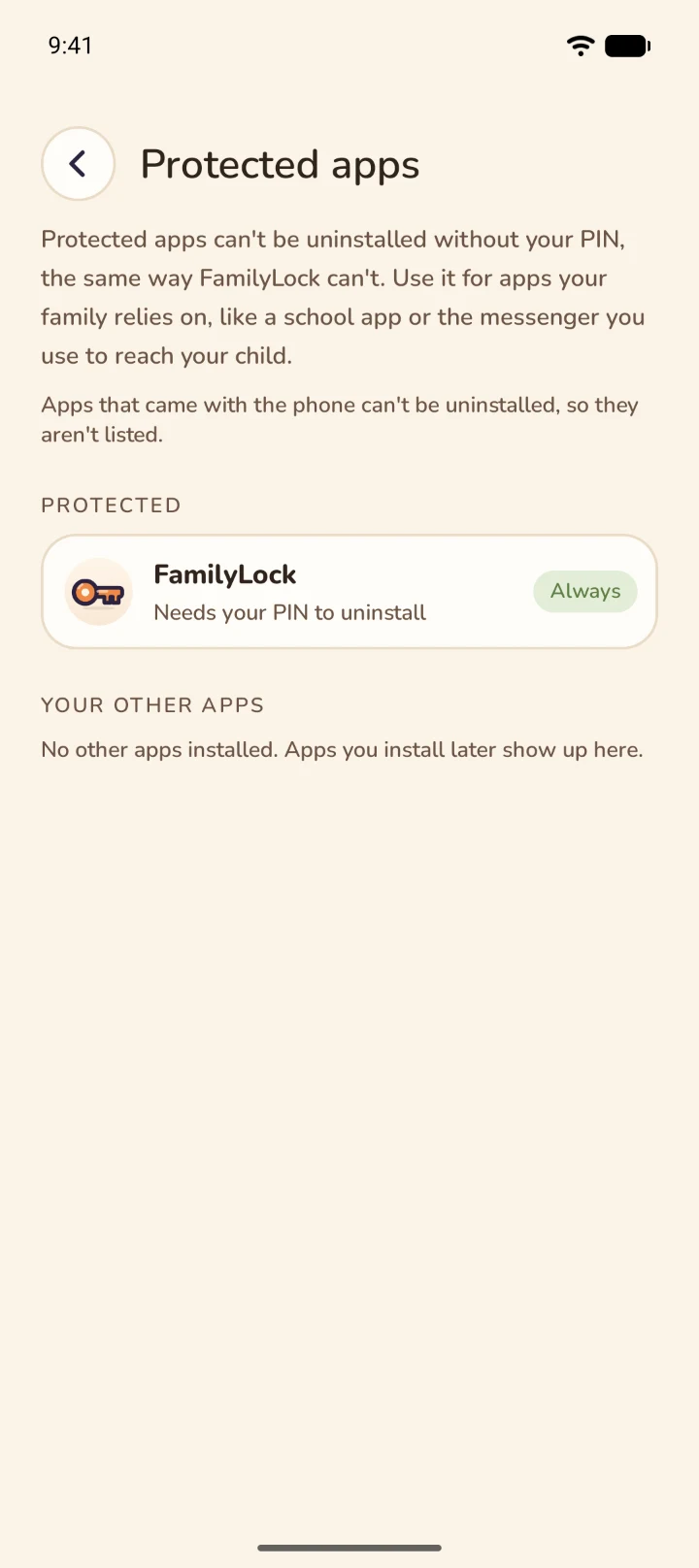
    When Android or the Play Store asks to uninstall FamilyLock, or any app you choose to protect, your PIN screen appears instead.

  • A way back in

    A one-time recovery code and an optional backup question if you forget your PIN, and a second parent PIN for the other parent.

  • No floating videos

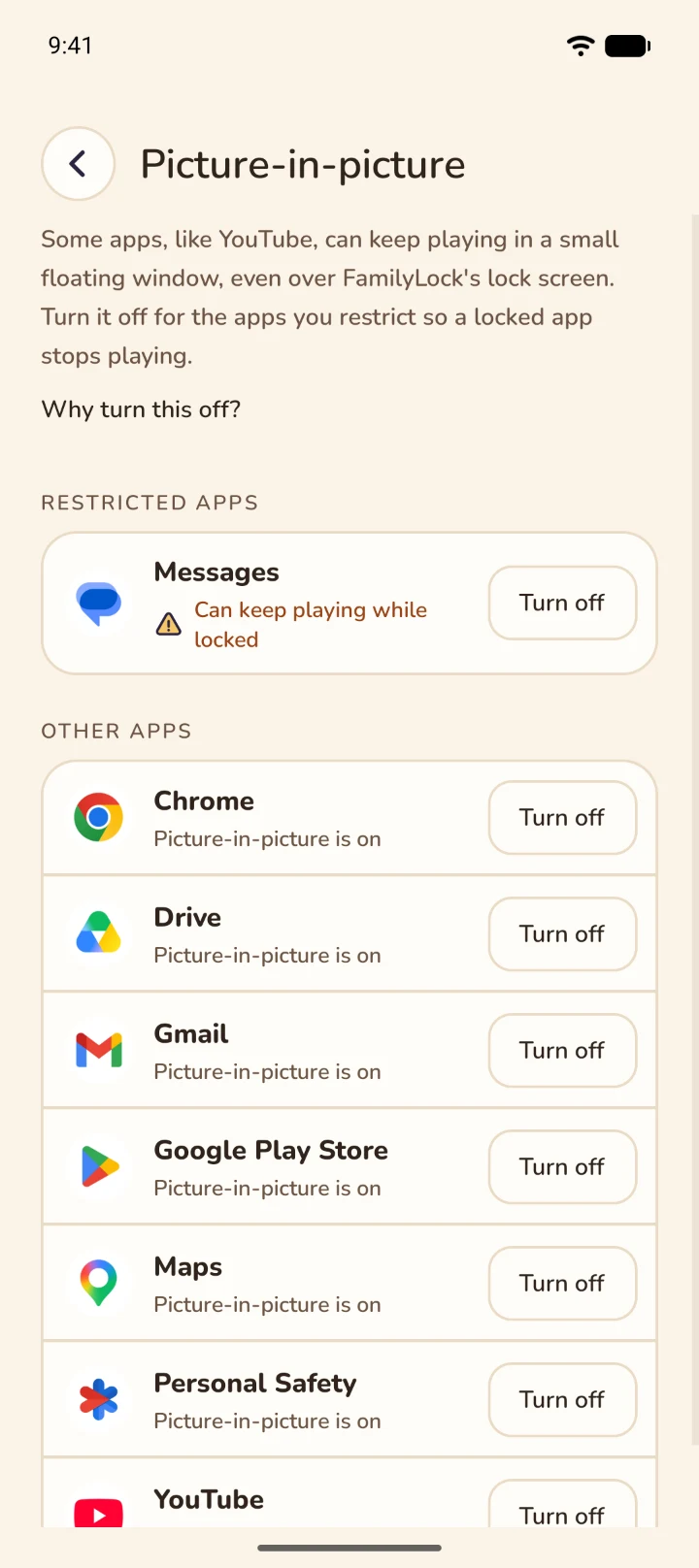
    Finds apps that could keep playing in a small window over a locked app, and opens each one's switch.

The whole app, on the phone it protects

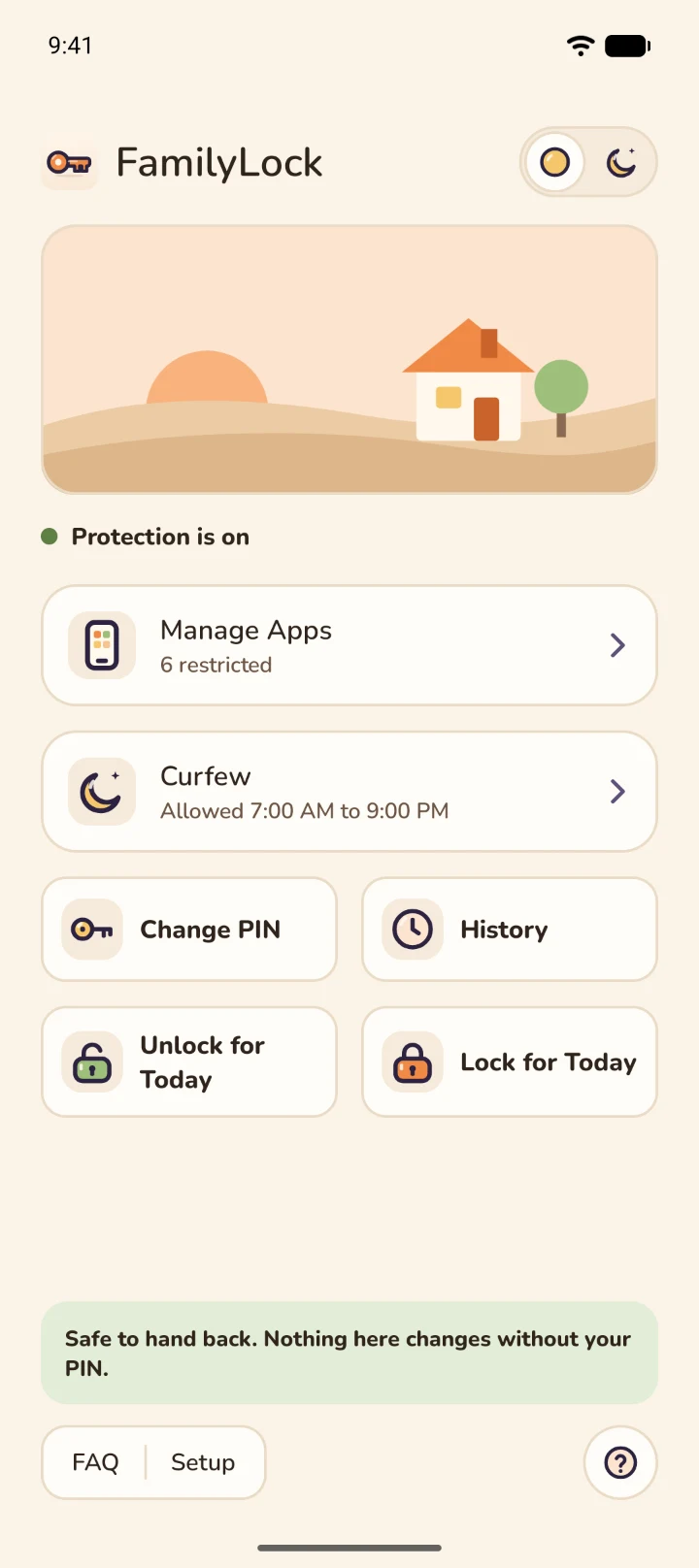
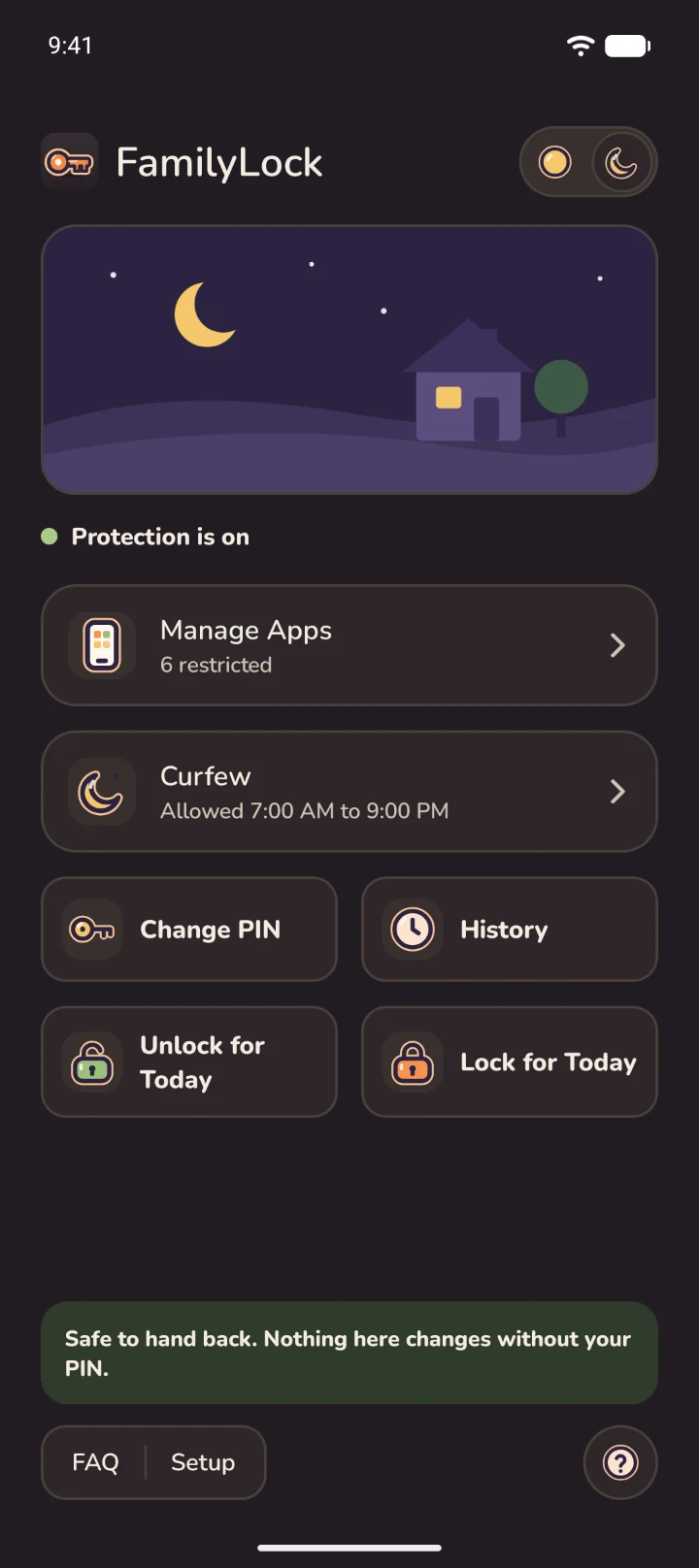
There is no website to log in to and no parent app. These are the screens, redrawn from the app itself. Swipe, or use the arrows, for more.

I built this for my own three boys.

When I went looking for a way to manage their phones, every app wanted two, three, four different accounts, a parent app and a child app, a subscription, and a setup that ate an evening and still did not work. Most of them also wanted to read my kids' messages and scan their photos. I did not want to spy on my children. I wanted bedtime to mean bedtime and thirty minutes of games to mean thirty minutes.

So I made the app I wanted. One install on the phone itself, one PIN, no account, no server, nothing leaving the phone. FamilyLock has run on my boys' phones through every version, and they are the reason most of the rough edges are gone. Your reports are how the rest of them go.

A dad of three, and the person who builds FamilyLock

Set up in one sitting

No parent dashboard to configure first. You do everything on your child's phone, once.

  1. Install FamilyLock

    From Google Play, on the phone you are setting up, not your own.

  2. Set your PIN and permissions

    The Setup screen walks through each one with its own button, tells you where the Accessibility switch is on that phone, and gives you a recovery code to write down.

  3. Choose what is allowed

    Pick the apps to limit and the hours that fit your family. Hand the phone back.

Read the full setup guide

What you are actually agreeing to

And what FamilyLock does not do. We would rather you read it here than find out later.

QuestionFamilyLockTypical monitoring app
AccountNoneParent and child accounts, linked
Reads messages or photosNeverOften, for content scanning
Data leaves the phoneNoYes, to a cloud dashboard
Cost$5 once$60 to $110 a year
SetupOne sitting, on one phoneTwo apps, two accounts, often half an hour or more
  • No remote control

    There is no parent dashboard. To change a rule, pick up the phone. It can't text or email you if it is turned off; History records when protection went off and back on.

  • No content filtering

    FamilyLock works per app. It can't filter websites, videos or features inside an app you allow.

  • Not unbreakable

    Safe Mode, a factory reset or a computer can get around any parental control, and a reply typed into a notification still sends. Settings, App info and uninstalls always need your PIN, which stops the everyday attempts.

Read the privacy policy

$5
once, on Google Play

One price, everything included

Buy it once on Google Play and it is yours to keep. No subscription, no upgrades to buy, and no ads. For Android 8 and newer.

  • Every feature included
  • No subscription
  • No ads, no account
  • Refunds through Google Play
Get it on Google Play

Common questions

Can my child uninstall it?

Not easily. When Android asks to confirm the uninstall, your PIN screen appears instead. It works the same when uninstalling from the Play Store. Settings, App info and Digital Wellbeing always need your PIN too, since those are where FamilyLock could be switched off or paused.

Will my child still be able to call me?

Yes. Phone, Contacts, Clock and the home screen are never locked, even during curfew or Lock for Today, and the rule can't be changed by accident.

Can I see what my child did?

Yes, in History on the Home screen, behind your PIN. It shows when restricted apps were opened or locked, when the PIN was used, and when settings changed. It stays on the phone.

Does it work on iPhone?

Not yet. FamilyLock is Android only today.

What if I forget my PIN?

Use the recovery code you wrote down at setup, or your backup question, to set a new PIN. A second parent PIN works too. If none of those are set, restart the phone in Safe Mode and clear FamilyLock's data in Settings, then set it up again. That clears your PIN and rules. There is no server, so nobody can reset it for you. The FAQ has the steps.

Read the full FAQ

Report a bug or send an idea

This goes straight to the person who builds FamilyLock, and we reply by email. Nothing you type here goes to the app on your child's phone.

What you did, what you expected, and what the app did instead. Screens and times help.