




Install FamilyLock
Install it from Google Play on the phone you are setting up, not your own. There is no second app for you and no account to make.
Everything happens on your child's phone, in one sitting. Here is each step, with the screen you will see.
Install it from Google Play on the phone you are setting up, not your own. There is no second app for you and no account to make.


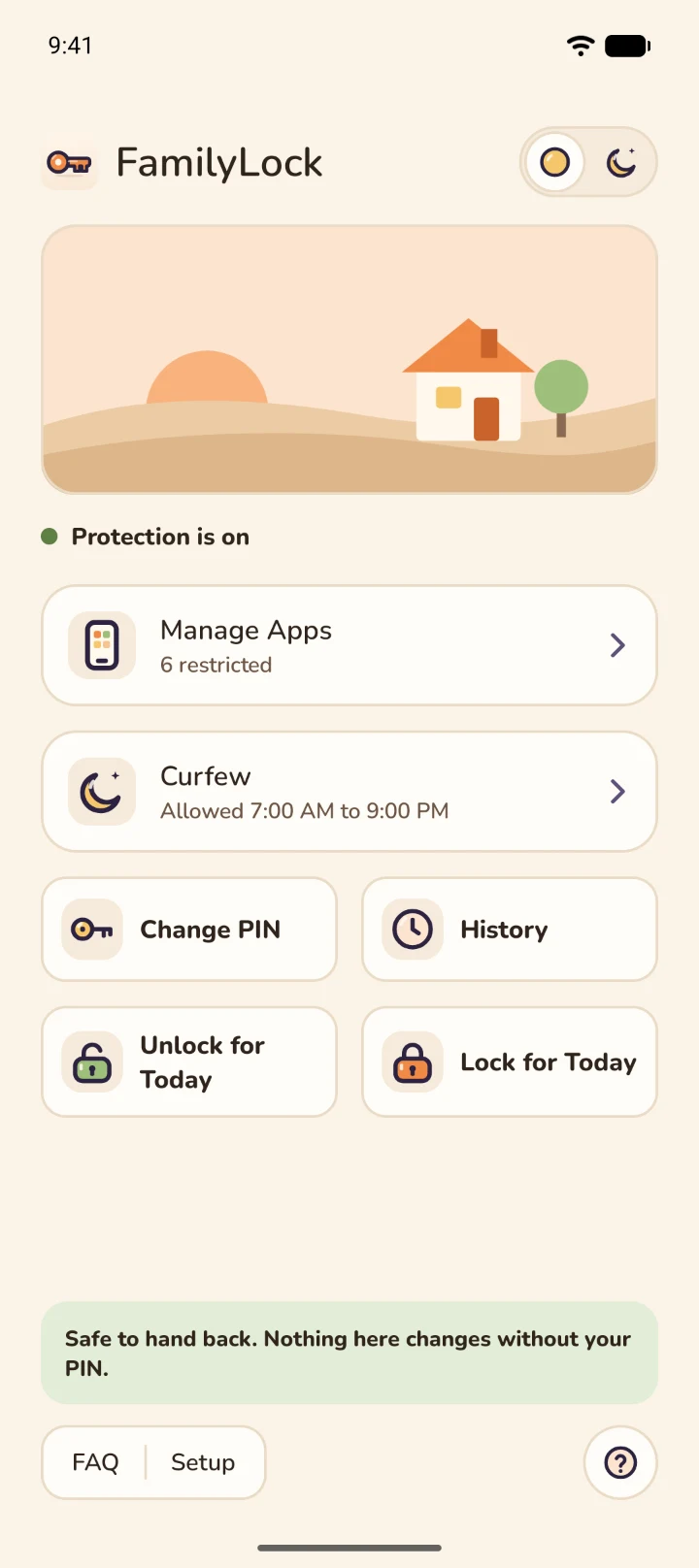
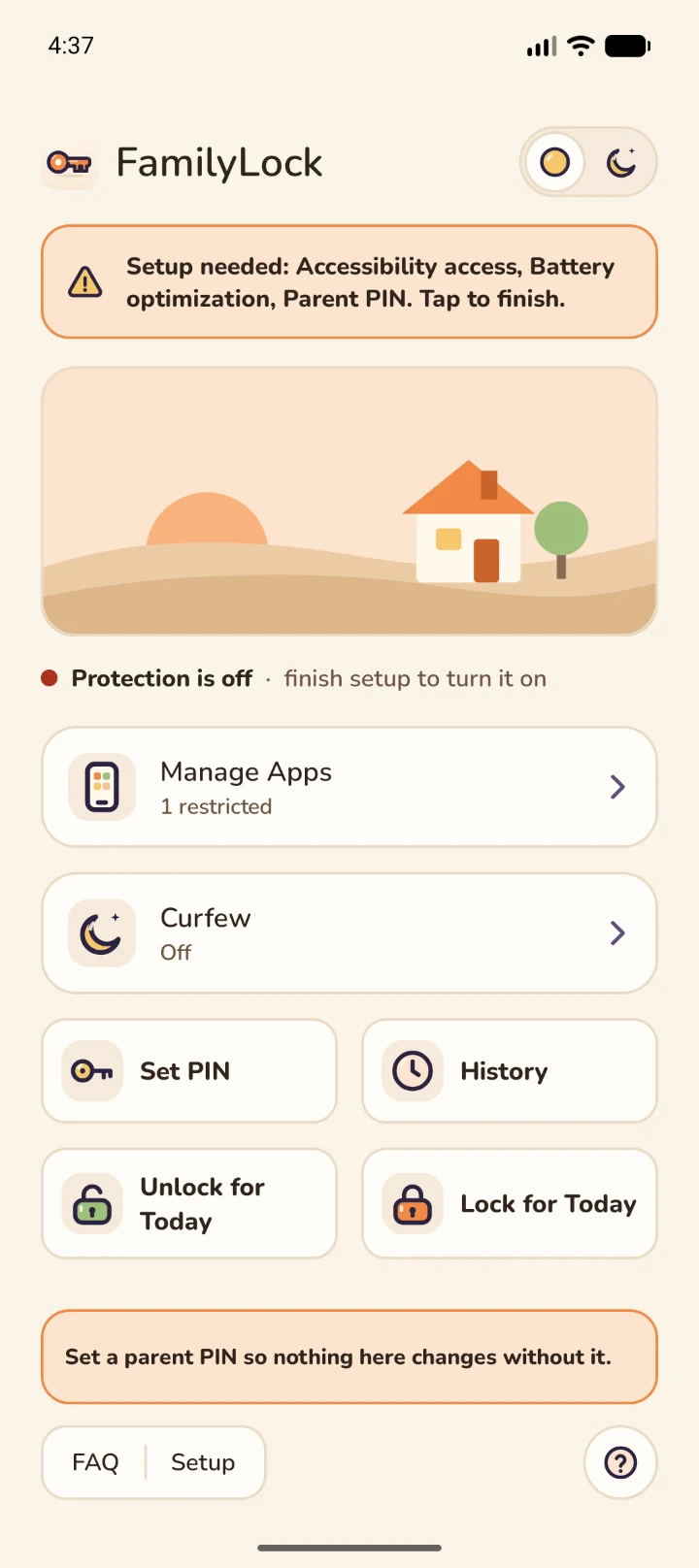
Until setup is finished, Home says what is missing and nothing is locked yet. Tap the banner to open Setup.
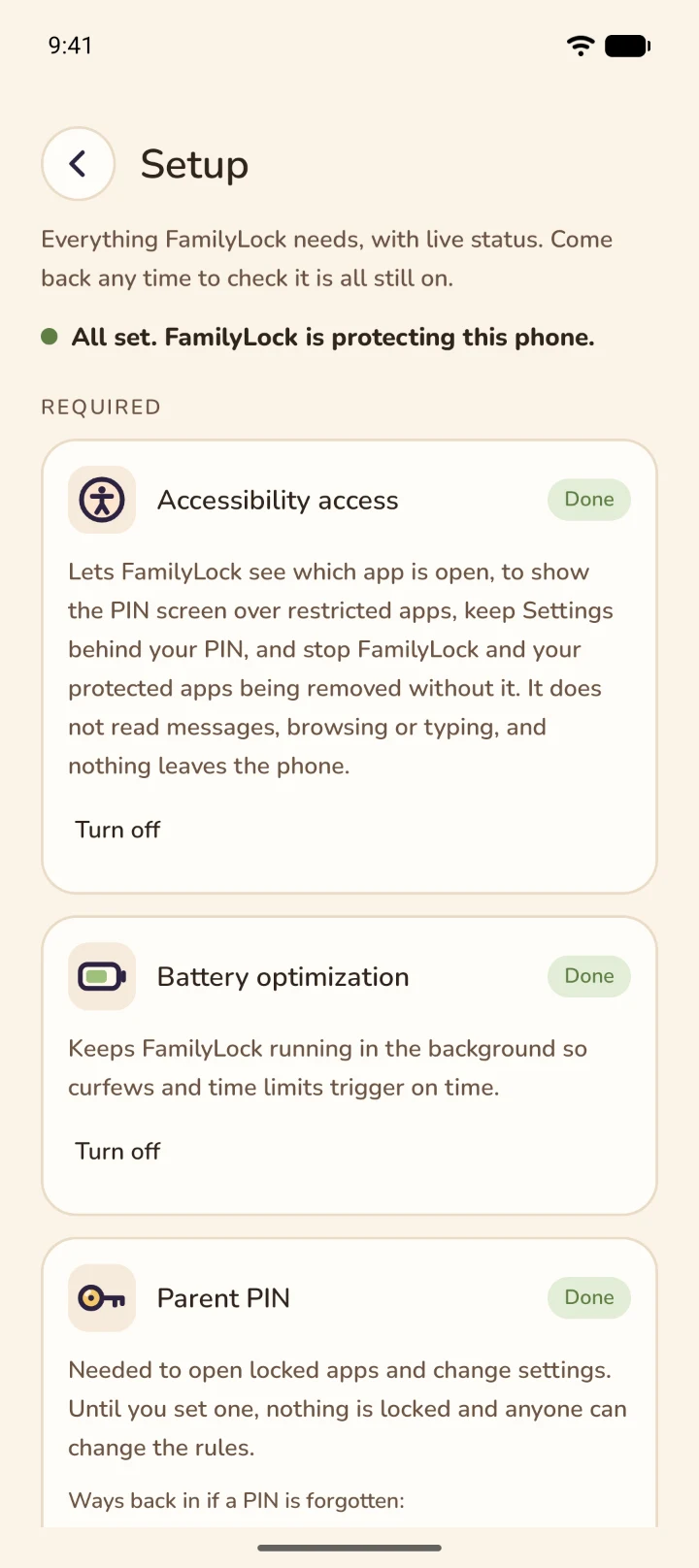
Each item has its own button and a live Done or Needed label. Do them in any order.
Four to eight digits, entered twice. Pick one your child hasn't seen you type. FamilyLock then shows a one-time recovery code, once. Write it down or photograph it with your own phone; it lets you set a new PIN if you forget. You can also add a backup question (pick one, or write your own) and a second parent PIN for another parent or guardian. All three are on the Parent PIN card in Setup, to add, change or remove later.
How FamilyLock knows which app is open, so it can show the PIN screen over a locked one. It does not read messages, browsing or typing. Tap Grant access. FamilyLock explains exactly how it uses this access; read it and tap Agree and open Settings. It also tells you where the switch is on that phone:
Turn the switch on, tap Allow, and come back. Until you agree to the explanation, FamilyLock locks nothing.
Tap Grant access and choose Allow. It keeps FamilyLock running in the background so curfews and time limits start on time.
Optional. Your child gets a heads-up five minutes before an app they are using locks.
Each finished step gets a Turn off link, if you ever need to undo it.
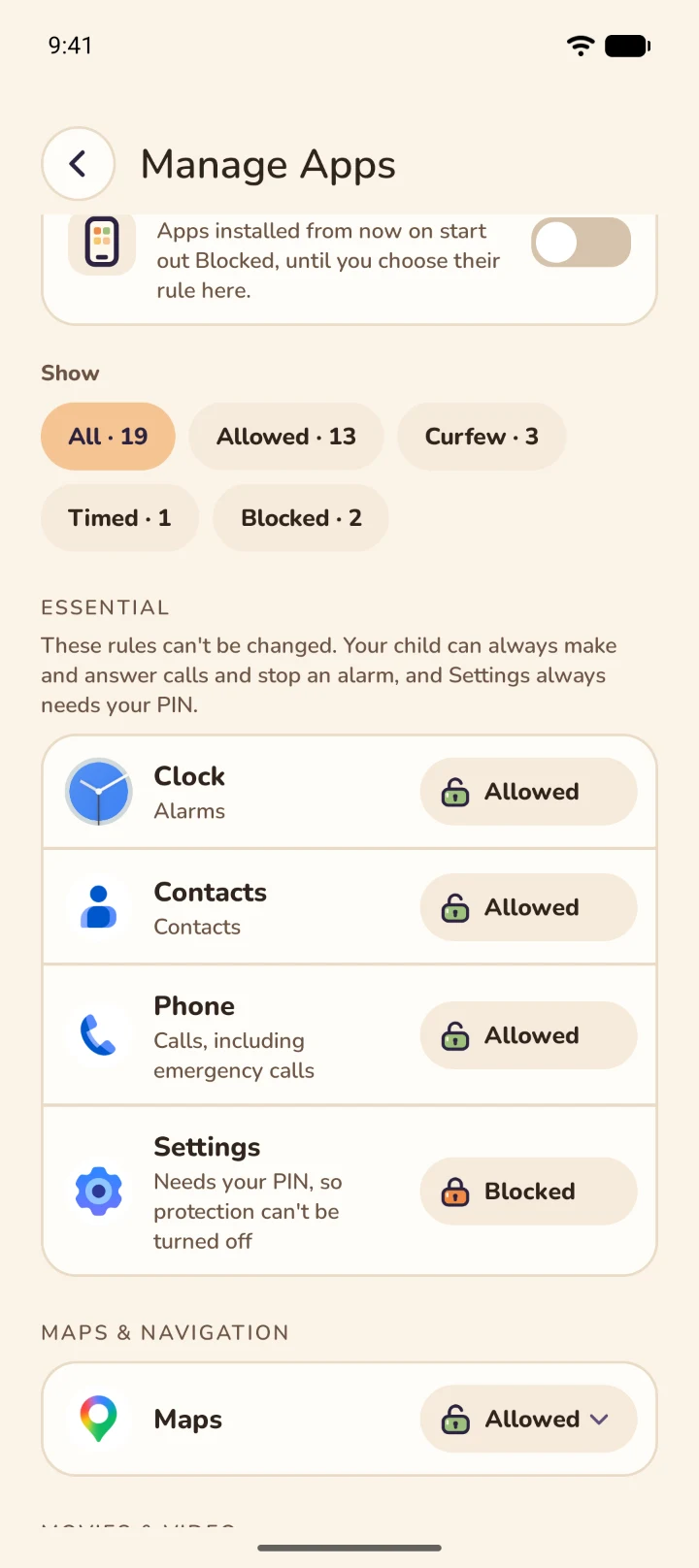
Open Manage Apps. Apps start out Allowed. To have apps installed later start out Blocked until you choose their rule, switch on Block new apps. Tap the pill beside an app to change it:
The Essential group at the top can't be changed: Phone, Contacts, Clock and the home screen always stay open, and Settings always needs your PIN.
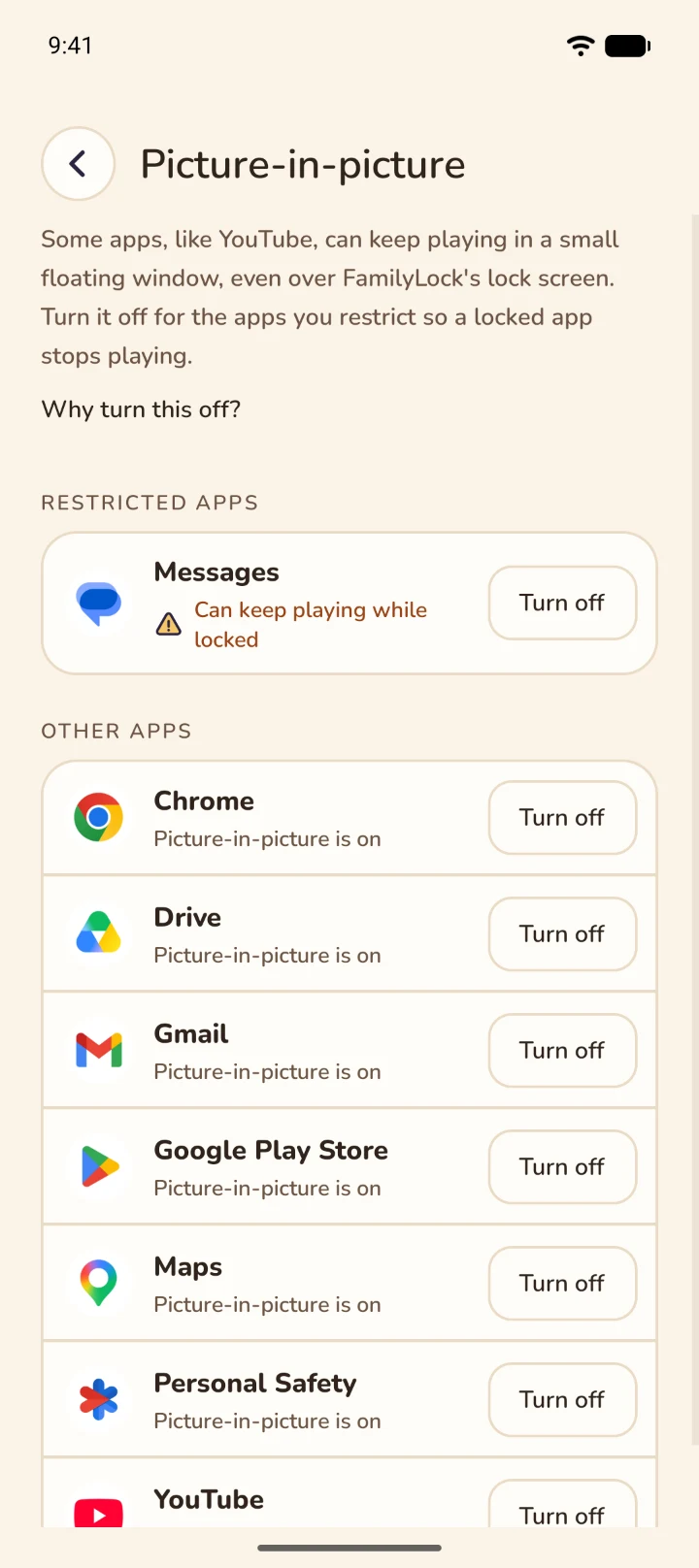
Some apps can keep playing a video in a small floating window, even over the lock screen. In Manage Apps, open Picture-in-picture. Restricted apps that can still do it have a warning; Turn off opens that app's switch in Android Settings.
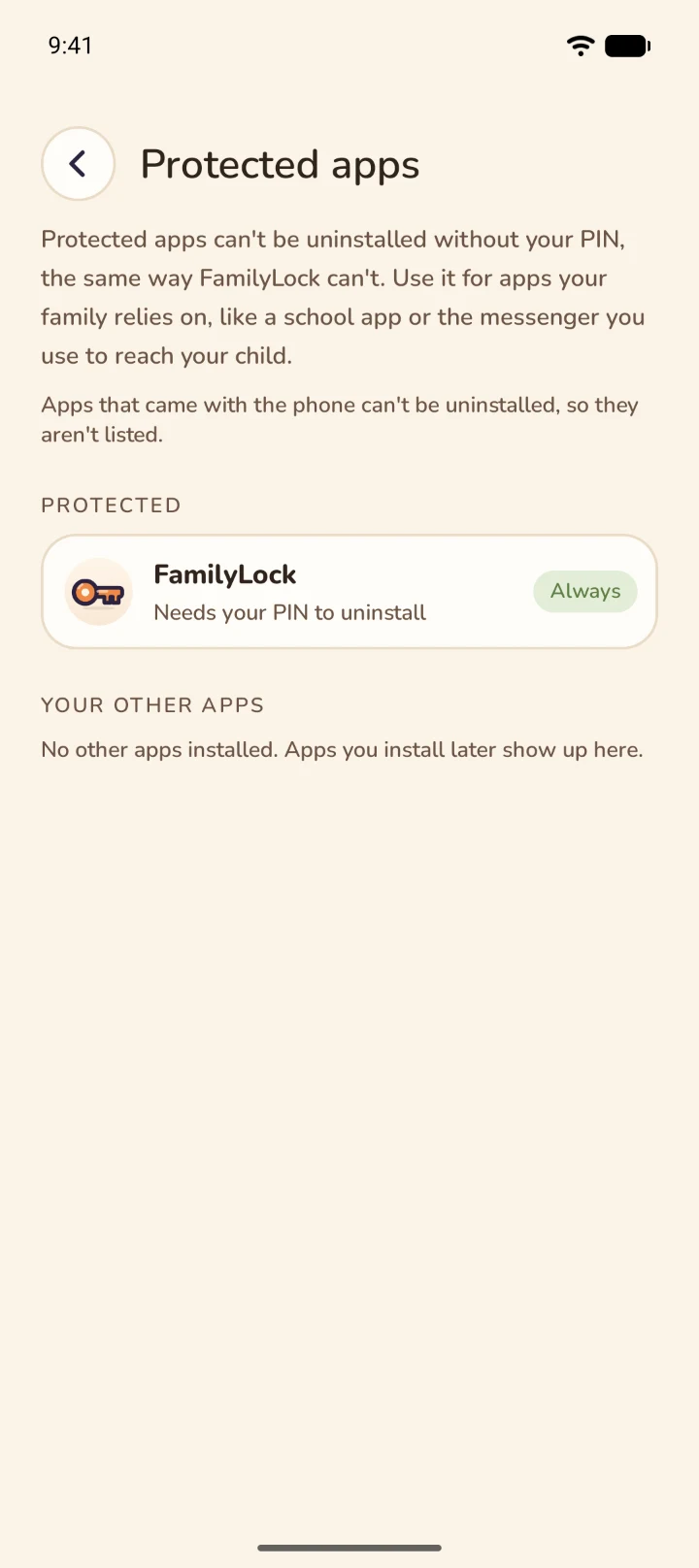
Optional. In Manage Apps, open Protected apps and switch on any app your child shouldn't remove, like a school app or the messenger you use to reach them. Uninstalling one then needs your PIN, the same way FamilyLock does.
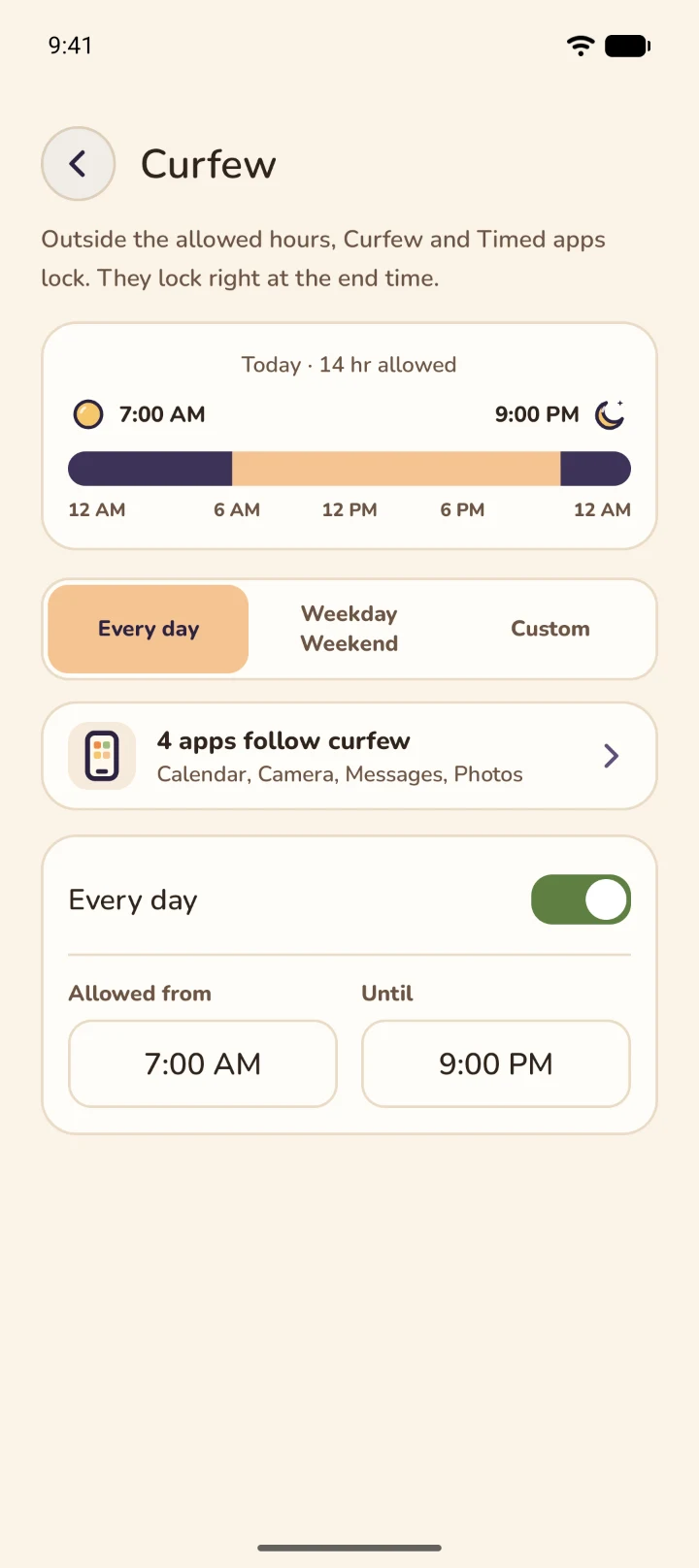
Open Curfew. One schedule for every day is enough for most families; Weekday/Weekend and Custom are there if you need them. Turn a schedule on and tap the times to change them. The bar at the top shows today at a glance.
While you are in FamilyLock, the box at the bottom of Home says it is not safe to hand back yet. Tap Lock, or just leave the app, and it changes to "Safe to hand back".